
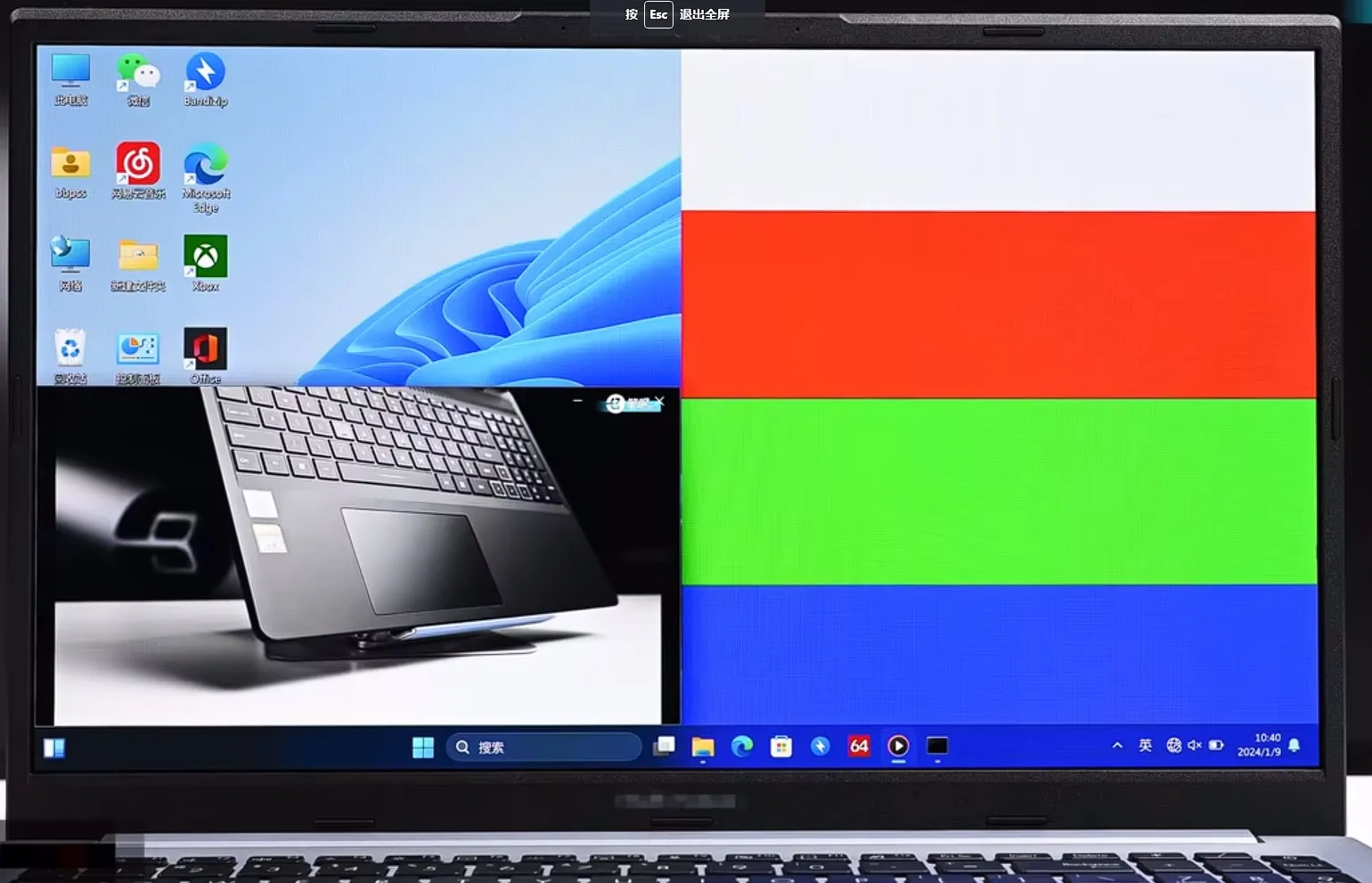
OLED displays have become mainstream across premium laptops, dominating lineups like Asus Zenbook and Vivobook (featuring Asus Lumina OLED), Samsung Galaxy Book (powered by Samsung Display ATNA panels), Lenovo Yoga OLED, and Dell XPS. Users revere OLED for true zero-nit blacks, vibrant 100% DCI-P3 color gamuts, and instant pixel response times. Yet, concerns about persistent Windows 11 taskbars, browser headers, and long-term screen burn-in remain the #1 question for prospective laptop buyers. Here is a comprehensive 2026 durability analysis combining multi-laptop stress tests, long-term real-world data, and essential OS protections.
Testing Methodology & The Longevity Timeline
To establish how long modern OLED laptop screens take to show differential sub-pixel wear, multiple testing laboratories and independent reviewers evaluated single-layer and tandem OLED panels under both continuous torture scenarios (100% static brightness without sleep) and standard productivity workloads:
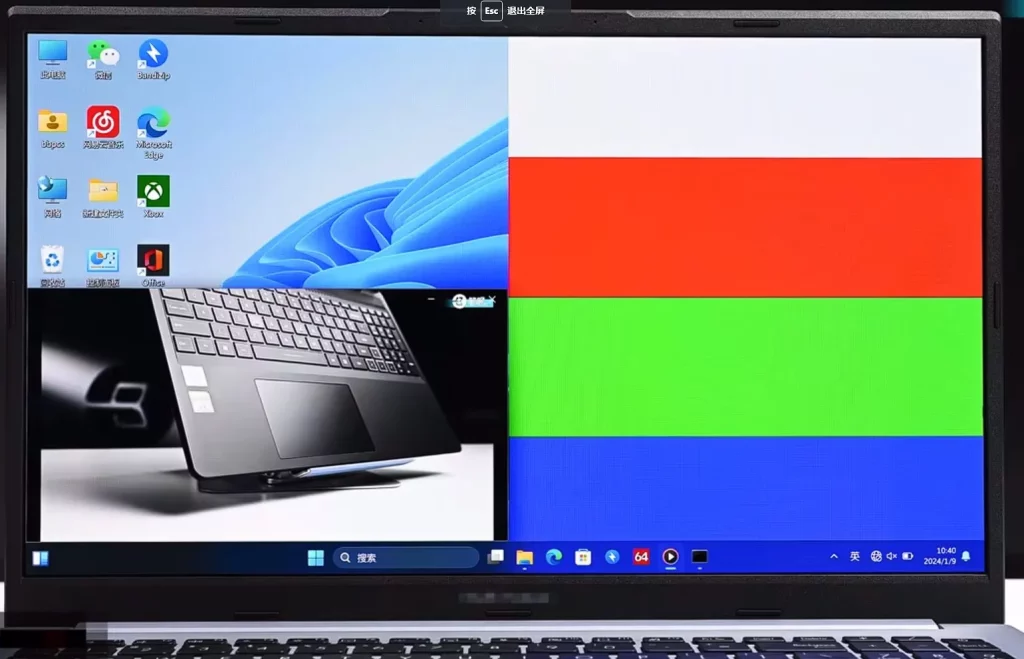
500-Hour Milestone: Temporary Retention vs. Static Stress
In standard daily office and multimedia usage (with auto-brightness and standard sleep timers), panels showed zero measurable degradation at 500 hours. Under continuous worst-case torture testing (a static desktop displayed 24/7 at 400 nits), colorimeters detected faint temporary image retention along high-contrast taskbar edges. However, after a 12-hour powered-down resting period, the retention faded, confirming it was backplane charge trapping rather than permanent damage.
1,500-Hour Milestone: Sub-Pixel Luminance Tracking
At 1,500 hours of continuous static exposure, older single-layer OLED panels exhibited a measurable 30–45 nit drop in static white window header zones on solid 50% gray test slides. In contrast, modern laptops equipped with OEM pixel-shift algorithms and Samsung Display ATNA materials exhibited negligible visible wear under everyday productivity patterns.
3,000+ Hours (2–3 Years of Everyday Use): The Verdict
For users who adopt basic prevention practices—specifically auto-hiding the Windows 11 taskbar and operating in dark mode—modern OLED laptops show virtually no noticeable burn-in after 3,000 to 5,000 cumulative hours of real-world productivity. Degradation is largely confined to extreme edge-case usage where static content is forced at maximum brightness for thousands of uninterrupted hours.
2026 Laptop Hardware Advancements: Lumina OLED, ATNA & Tandem Stacks
Laptop manufacturers have engineered multi-layered defenses to eliminate burn-in risks:
- ASUS Lumina OLED & OLED Care Suite: ASUS integrates pixel refreshers, pixel shifting, and Target Mode (which automatically dims inactive background windows while keeping the focused window bright) directly into MyASUS, cutting static UI thermal load by up to 50%.
- Samsung Display ATNA Panels: High-efficiency E5 and E6 organic emissive materials with redesigned deuterium-stabilized blue sub-pixels provide substantially higher resistance to electrochemical breakdown.
- Tandem OLED Architecture: Featured in cutting-edge 2025–2026 laptops and tablets, dual-stack tandem OLEDs distribute the light generation across two series-connected emissive layers. This cuts the current density per diode in half, multiplying panel lifespan by 3x to 4x.
- Graphene Heat Spreaders: Premium ultrabooks like the Lenovo Yoga Slim and Dell XPS incorporate specialized thermal heat spreaders behind the OLED panel to dissipate heat away from the organic substrate.
Windows 11 Best Practices: How to Prevent Laptop Burn-In
Configuring a few native Windows 11 settings eliminates the overwhelming majority of static display stress:
- Auto-Hide the Windows 11 Taskbar (#1 Essential Setting):
Right-click the Taskbar > select Taskbar settings > expand Taskbar behaviors > check Automatically hide the taskbar. This prevents the static taskbar line, Start icon, and system tray clock from burning into the bottom edge of your panel. - Enable System-Wide Dark Mode:
Go to Settings > Personalization > Colors and set Choose your mode to Dark. Dark themes turn white backgrounds into deep dark grays or pure black, shutting off or down-throttling millions of OLED sub-pixels across Word, Excel, browser windows, and coding IDEs. - Configure Short Screen Sleep Timeouts:
Navigate to Settings > System > Power & battery > Screen and sleep and set the display to turn off after 2 to 3 minutes of inactivity. - Use Dynamic or Rotating Wallpapers:
Under Settings > Personalization > Background, select Slideshow or Windows Spotlight to ensure your desktop wallpaper changes periodically rather than beaming a static image.
How to Clear Ghosting on OLED Laptops
If faint taskbar outlines or browser tab shadows appear on your laptop screen, run our free Online Screen Burn-In Fix Tool in your browser.
Press F11 to enter full-screen mode and let the dynamic chromatic repair cycle run for 30–60 minutes. The rapid full-spectrum cycling neutralizes trapped capacitive backplane charges and stimulates adjacent sub-pixels, smoothing out differential wear contours. With basic preventative habits and periodic software maintenance, an OLED laptop will remain crisp and burn-in free for years of daily use.