
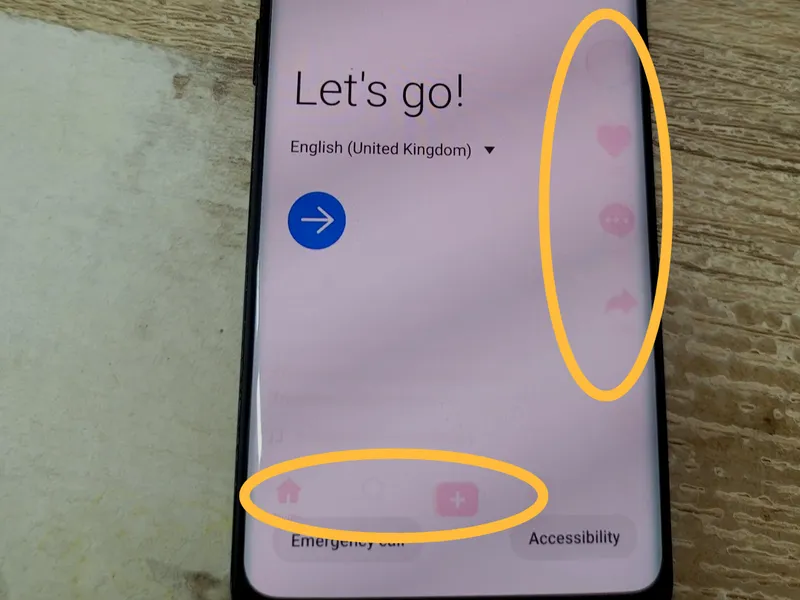
Vertical short-video platforms—primarily TikTok, Instagram Reels, and YouTube Shorts—have become the leading driver of mobile OLED screen burn-in and image retention reports worldwide. Smartphone users frequently report persistent ghost silhouettes of the like heart, comment bubble, and audio disc burned into their displays after just several months of normal use. Why do vertical video applications cause such disproportionate wear on OLED screens, and how can you configure your device to prevent it? Here is a deep technical analysis.
The Anatomy of Short-Video OLED Degradation
To understand why TikTok and similar apps cause rapid screen burn-in, one must examine how OLED (Organic Light-Emitting Diode) displays operate at the sub-pixel level compared to traditional LCD panels. Several factors converge to create an ideal environment for localized sub-pixel fatigue:
1. Pure White (#FFFFFF) Glyphs Demand Peak Sub-Pixel Current
Unlike LCDs which utilize a shared, continuous backlight, each OLED sub-pixel produces its own illumination. To render pure white (#FFFFFF), the red, green, and blue organic sub-pixels must all illuminate simultaneously at maximum drive voltage. The high photon energy required by blue sub-pixels generates the highest electrical stress, accelerating organic material decay directly beneath the icon shapes.
2. Dark Margins Amplify Differential Wear Gradients
Many short videos do not fill the modern 19.5:9 or 20:9 phone aspect ratio completely, leaving dark or black letterbox borders along the sides or bottom. Under an OLED display, black pixels are completely powered down (0 nits and zero current draw), while adjacent static UI icons beam at 800 to 1,200+ nits. This extreme differential current creates a sharp step-function contrast boundary that the human visual cortex easily detects as a ghost watermark.
3. Static Coordinate Anchoring During Dynamic Feeds
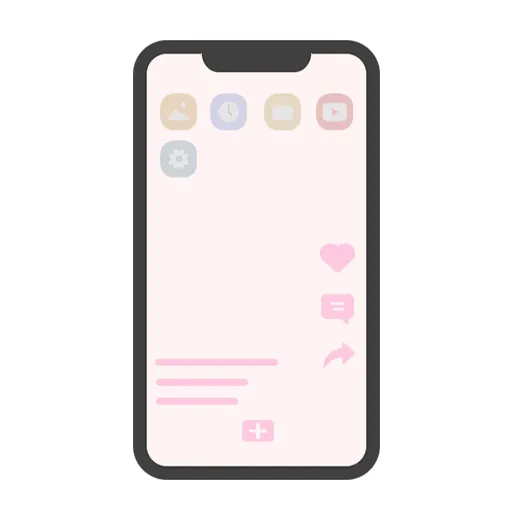
While the video background changes every 15 to 30 seconds as you scroll, the UI overlay—the like heart, comment icon, bookmark glyph, share arrow, creator username, and audio disc—remains locked in the exact same X and Y screen coordinates. A user scrolling for two continuous hours subjects those precise sub-pixel clusters to 120 minutes of non-stop high-voltage current, while surrounding screen areas experience shifting, dynamic imagery.
4. Thermal Acceleration (The Arrhenius Effect)
Sub-pixels driven at continuous high current generate localized micro-heat. In organic electronics, chemical degradation rates follow the Arrhenius equation: every incremental increase in localized junction temperature doubles the rate of organic polymer oxidation and efficiency loss. This creates a self-reinforcing pocket of accelerated sub-pixel decay beneath static icons.
Software Prevention Settings: Mitigating UI Burn-In
You do not need to give up your favorite video apps to protect your screen. Adopting these built-in software settings drastically cuts sub-pixel wear:
1. Activate TikTok's "Clear Display" Mode
TikTok includes a dedicated display feature that removes all static UI icons during playback:
- Open any video in TikTok.
- Press and hold anywhere on the center of the video screen.
- In the menu that appears, tap Clear Display.
- All right-side icons, captions, hashtags, and music titles will disappear, leaving only the moving video content. Simply tap the screen to restore icons when you want to like or comment.
2. Enable Dark Mode in App & OS
In TikTok, navigate to Profile > Menu (top right) > Settings and privacy > Display and choose Dark. Dark mode switches navigation surfaces from high-voltage light gray to pure black, shutting off OLED sub-pixels completely and keeping overall panel temperatures cool.
3. Switch from 3-Button Navigation to Full-Screen Gestures
On Android devices, static Back, Home, and Recents buttons positioned right beneath TikTok's bottom menu bar double the static footprint. Go to Settings > Display > Navigation Bar and select Swipe Gestures to eliminate static bottom graphics entirely.
4. Adopt Mindful Brightness & Sleep Habits
- Enable Auto-Brightness: Prevents your screen from running at maximum outdoor nits when scrolling indoors or late at night.
- Shorten Auto-Lock Timeout: Set your screen timeout to 1 minute. If you fall asleep or walk away while a video loops, your phone automatically powers down instead of baking static icons into the panel for hours.
How to Clear Early Icon Retention
If you already notice faint ghost outlines of the TikTok like button or comment bubble, run our free Online Screen Burn-In Fix Tool in your phone browser.
Running the dynamic color flasher at 80%–90% brightness for 30–60 minutes subjects your display to rapid full-screen chromatic oscillations. This relieves trapped capacitive charges on the TFT backplane and exercises surrounding sub-pixels to smooth out localized luminance boundaries. Acting early prevents temporary image retention from turning into permanent differential wear.