
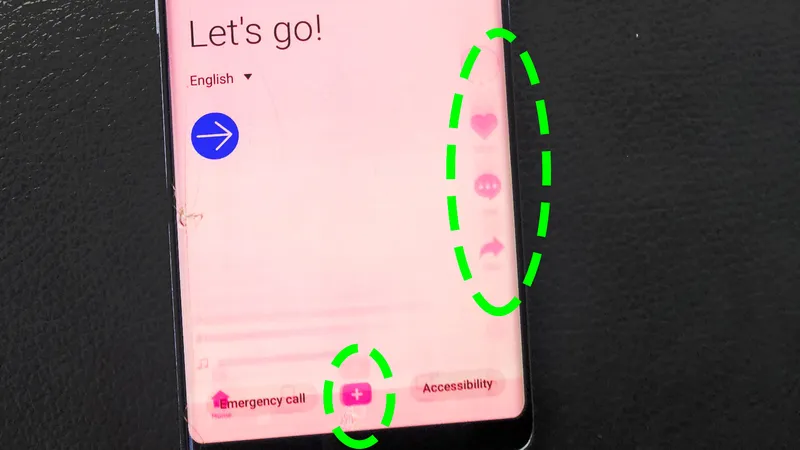
If you spend hours scrolling through TikTok, Instagram Reels, or YouTube Shorts on an OLED smartphone, you may have noticed faint ghost outlines lingering across your display: the white like heart, comment bubble, bookmark icon, share arrow, rotating audio disc, or bottom progress bar. These static UI overlays cause localized sub-pixel fatigue. Fortunately, you can effectively clear these ghost icons using our full-screen dynamic chromatic cycle remedy.
Why Vertical Video Apps Cause Icon Burn-In
Modern smartphones—including the iPhone 14/15/16/17 Pro, Samsung Galaxy S23/S24/S25/S26, Google Pixel, and OnePlus flagships—feature vibrant OLED and AMOLED displays. In OLED panels, each individual sub-pixel produces its own illumination. When an app displays pure white icons (#FFFFFF), all three sub-pixels (Red, Green, and Blue) fire at maximum luminous intensity simultaneously.
Vertical short-video apps present high-risk conditions for OLED panels:
- Static Coordinates Across Hours of Scrolling: While video backgrounds change rapidly, the right-hand interaction icons (like, comment, bookmark, share) and the bottom progress bar stay locked in the exact same pixel coordinates.
- High-Contrast Borders: Pure white glyphs overlaid on dark or variable video backgrounds create steep electrical current differentials between icon pixels and adjacent video pixels.
- High Display Brightness: Users frequently scroll feeds indoors and outdoors at high brightness levels, accelerating localized sub-pixel thermal load.
Step-by-Step Tutorial: The Dynamic Chromatic Cycle Remedy
You do not need to install third-party maintenance apps. You can run the sub-pixel recovery protocol directly through your phone browser using our free Online Screen Burn-In Fix Tool.
Step 1: Prepare Your Device
Connect your smartphone to a charger. Temporarily set your screen timeout to "Never" or 10–30 minutes (on iOS: Settings > Display & Brightness > Auto-Lock; on Android: Settings > Display > Screen timeout) so the display remains active throughout the repair session.
Step 2: Open the Tool in Mobile Safari or Chrome
Navigate to fixburnin.com/launch/ in your mobile browser. Tap the full-screen toggle to expand the tool across the entire display, completely concealing the browser URL bar, navigation bar, and status icons.
Step 3: Set Screen Brightness
Manually adjust your display brightness to 80%–100%. A high drive current is required during chromatic cycling to generate sufficient electrical transitions to dispel trapped capacitive charges and stimulate under-utilized sub-pixels.
Step 4: Select Cycle Duration
Choose your treatment duration based on how long the ghost icons have been visible:
- Mild / Recent Retention (noticed today): Run for 30 minutes.
- Moderate Retention (visible for several days): Run for 60 minutes.
- Persistent Ghost Watermarks: Run 1-hour sessions daily for 3 to 5 consecutive days.
Step 5: Inspect and Verify Recovery
Once the cycle completes, switch the tool to the Solid 50% Neutral Gray test pattern. Inspect the right edge and bottom of the display where the TikTok icons were imprinted. In the vast majority of cases, the ghost outlines will have completely vanished.
How Dynamic Color Cycling Fixes Icon Outlines
The repair tool executes rapid, full-screen color cycling across primary (Red, Green, Blue) and complementary spectra at rapid refresh intervals. This achieves two technical results:
- Neutralizes Backplane Charge Trapping: Rapid polarity switching forces accumulated capacitive charges across the thin-film transistor (TFT) backplane to dissipate, resolving temporary image retention (TIR).
- Smooths Sub-Pixel Edge Gradients: Full-screen chromatic excitation exercises surrounding, un-aged sub-pixels, graduating the abrupt step-function boundary of the static icon. This renders lingering outlines invisible to the human visual system.
Essential Prevention Settings for TikTok Users
- Use TikTok "Clear Display" Mode: While watching a video, press and hold anywhere on the screen, then tap Clear Display in the pop-up menu. This completely hides all right-side buttons, captions, and UI elements during video playback.
- Switch to Full-Screen Gesture Navigation: On Android phones, change your navigation mode from 3-button navigation to Swipe Gestures (Settings > Display > Navigation Bar). This prevents the bottom navigation buttons from burning in alongside TikTok's interface.
- Keep Auto-Brightness Enabled: Avoid locking your phone brightness at 100% during long late-night scrolling sessions.
- Reset Screen Timeout: After running the repair tool, restore your auto-lock timeout to 1 minute to prevent accidental static display when stepping away.
Frequently Asked Questions
Q: Will running the dynamic color tool harm my phone screen or battery?
A: No. The tool simply displays normal full-screen web colors at your device's native refresh rate. It operates entirely within standard display specifications and poses no risk to hardware.
Q: Are TikTok ghost icons always permanent?
A: No. More than 80% of reported TikTok ghosting cases are temporary image retention (TIR) or mild charge persistence, which clears effectively after a 30–60 minute session at fixburnin.com/launch/.