
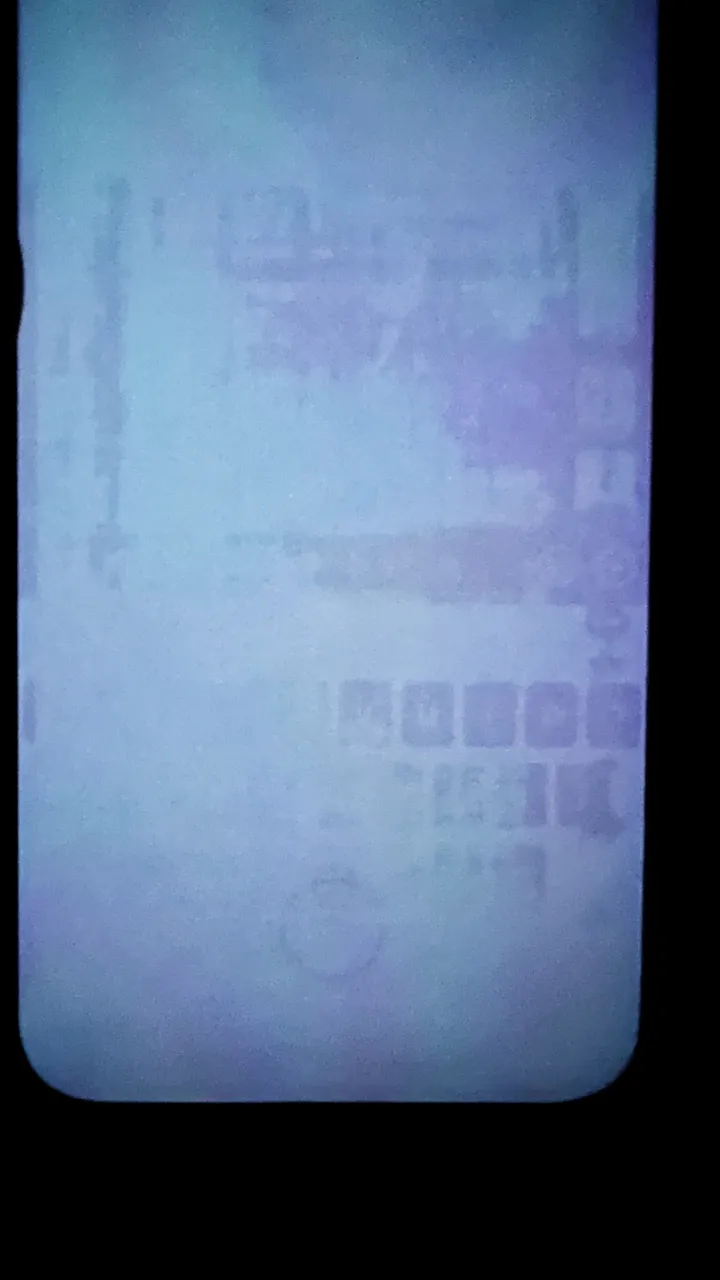
Following the launch of the iPhone 15 Pro series, reports of persistent keyboard outlines and ghost icons sparked widespread discussion among smartphone users regarding OLED screen burn-in. As Apple expanded Always-On Display (AOD) and ultra-bright Super Retina XDR OLED panels across the iPhone 15, iPhone 16, and iPhone 17 lineups, understanding how Apple's display hardware and iOS firmware handle image persistence is crucial. Here is an in-depth technical analysis distinguishing temporary software image persistence from true hardware burn-in, alongside concrete diagnostic and recovery steps.
The iPhone Launch Cases: Software Bug vs. Hardware Burn-In
When the iPhone 15 Pro and 15 Pro Max first reached consumers running iOS 17.0, a noticeable cluster of users reported faint watermarks of the virtual keyboard, navigation icons, and lock screen widgets remaining visible after switching to dark or neutral backgrounds. Many feared early hardware OLED degradation.
Apple engineering investigated the issue and identified the root cause: an algorithmic bug in the iOS 17.0 display driver that prevented the display timing controller (TCON) from properly clearing charge retention across thin-film transistor (TFT) sub-pixel backplanes. Apple issued a definitive software resolution in iOS 17.1, which refreshed sub-pixel charge balancing and eliminated the ghosting without hardware replacements. This confirmed that the vast majority of early incidents were Temporary Image Retention (TIR) rather than permanent physical burn-in.
With iPhone 16 and iPhone 17 models pushing outdoor peak brightness levels up to 2,000–3,000 nits, thermal management and display driver refresh cycles play an even greater role in safeguarding organic light-emitting sub-pixels from localized differential wear.
Always-On Display (AOD) Mechanics on Modern iPhones
The Pro tiers of the iPhone 14, 15, 16, and 17 series employ Low-Temperature Polycrystalline Oxide (LTPO) Super Retina XDR OLED displays capable of dynamic variable refresh rates from 120Hz down to a power-sipping 1Hz during Always-On Display mode.
To prevent continuous static elements from wearing out organic sub-pixels prematurely, iOS integrates several dedicated hardware-firmware mitigations:
- Sub-Pixel Micro-Shifting: iOS subtly shifts the coordinates of the lock screen clock, date, and widgets by several micro-pixels periodically. This imperceptible motion redistributes luminance stress across adjacent sub-pixels, preventing sharp border degradation.
- 1Hz Drive Frequency & Voltage Throttling: Reducing the refresh rate to 1Hz dramatically lowers the electrical duty cycle, cutting power draw and sub-pixel heat dissipation.
- Contextual Display Sleep: AOD intelligently shuts off the screen entirely (0 nits) when the iPhone is face down on a table, placed inside a pocket or bag, connected to CarPlay, or when the user leaves the room wearing an Apple Watch.
Temporary Image Retention (TIR) vs. Permanent OLED Burn-In
Distinguishing between software/charge retention and hardware burn-in is critical when troubleshooting an iPhone screen:
| Metric | Temporary Image Retention (TIR) | Permanent Hardware Burn-In |
|---|---|---|
| Underlying Cause | Residual charge on TFT backplane capacitance or temporary sub-pixel thermal buildup. | Cumulative electro-chemical aging of organic light-emitting compounds (especially blue sub-pixels). |
| Reversibility | 100% reversible via software, power-off rest, or chromatic cycling. | Irreversible at the sub-pixel level (requires pixel equalization or screen replacement). |
| Typical Recovery Time | 15 minutes to 2 hours. | Does not fade naturally over time. |
| Appearance | Mild ghosting visible only on specific uniform gray tones; clears after video playback. | Persistent watermark visible across multiple colored backgrounds and interfaces. |
Recommended iOS Settings to Protect Your iPhone Display
To maximize panel longevity and prevent both temporary retention and long-term sub-pixel degradation on your iPhone 15, 16, or 17, adjust these system settings:
- Disable Wallpaper in Always-On Display: Navigate to Settings > Display & Brightness > Always On Display and toggle off Show Wallpaper. This turns off all background OLED sub-pixels entirely (true black = 0 nits), illuminating only the clock and essential widgets.
- Keep Auto-Brightness Enabled: Go to Settings > Accessibility > Display & Text Size and verify Auto-Brightness is enabled. This ensures the panel does not run at high peak brightness unnecessarily indoors.
- Configure Auto-Lock to 30 Seconds or 1 Minute: Under Settings > Display & Brightness > Auto-Lock, select a short timeout to prevent static home screen or app displays when setting the phone down.
- Keep iOS Updated: Display driver timings, pixel refresh algorithms, and thermal throttle curves receive continuous refinements in iOS maintenance releases.
How to Diagnose and Fix iPhone Screen Retention
If your iPhone screen displays faint outlines of the iOS keyboard, TikTok icons, or status bar glyphs, you can diagnose and clear the retention using our free Online Screen Burn-In Fix Tool in mobile Safari.
Step-by-Step Retention Recovery Protocol
- Initial Inspection: Open fixburnin.com/launch/ in Safari on your iPhone. Switch to full screen and inspect the solid 50% neutral gray test screen in a dimly lit room. Look closely for keyboard keys, home indicators, or notification icons.
- Run the Dynamic Color Cycle: On the tool screen, select the dynamic chromatic flasher. Increase your iPhone screen brightness to 80%–90%.
- Let It Run for 30–60 Minutes: Allow the rapid RGB spectrum transitions to run uninterrupted. The alternating sub-pixel voltage stimuli dissipate trapped electrical charges across the TFT backplane and equalize luminance response.
- Verify Results: Return to the solid gray inspection background. If the watermark has completely disappeared, the issue was temporary charge retention.
If faint ghost outlines remain unchanged after multiple 1-hour sessions over 48 hours, localized sub-pixel aging has occurred. Because true hardware burn-in involves physical degradation of organic emitters, consult Apple Support or visit an Apple Authorized Service Provider to evaluate diagnostic screen replacement under warranty or AppleCare+.